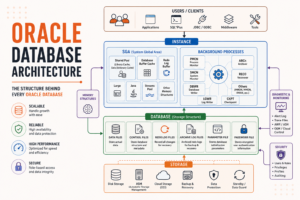
Oracle Instance and Database Startup and Shutdown


Learn Oracle Instance and Database Startup & Shutdown with startup phases (NOMOUNT, MOUNT, OPEN), shutdown modes, and essential DBA commands.
A complete production-ready SOP for Oracle Database startup and shutdown procedures on Linux. Covers all startup modes, all shutdown modes, pfile vs spfile startup, startup and shutdown in RAC environments, CDB and PDB startup and shutdown, common startup failures and fixes, automatic startup configuration, and full pre and post checks — with real commands, expected outputs, and consultant-level notes for both standard OFA and enterprise custom path conventions.
1. Document Info
| Item | Detail |
|---|---|
| Oracle Version | 19c (19.3+) |
| OS | Oracle Linux 7.x / RHEL 7.x or 8.x |
| Covers | Standalone, RAC, CDB/PDB, Data Guard |
| MOS Reference | Doc ID 1359094.1 (Startup and Shutdown Best Practices) |
| MOS Reference | Doc ID 2059171.1 (CDB and PDB Startup Shutdown) |
| MOS Reference | Doc ID 1586986.1 (RAC Startup Shutdown) |
| Prepared By | W3Buddy |
2. Startup and Shutdown — Concepts You Must Know First
📝 Why does a DBA need to master startup and shutdown? Every DBA activity eventually requires a database restart — patching, parameter changes, upgrade, recovery, hardware maintenance. Knowing exactly which startup mode to use, which shutdown mode is safe, and what to check before and after is fundamental. A wrong shutdown mode during an active workload or a wrong startup mode during recovery can make a bad situation much worse.
The Three Stages of Database Startup
SHUTDOWN                NOMOUNT                  MOUNT                    OPEN
(nothing running)       (instance only)          (instance + controlfile) (fully open)
        │                     │                        │                      │
        │   STARTUP NOMOUNT   │    ALTER DATABASE      │   ALTER DATABASE     │
        │────────────────────►│        MOUNT           │        OPEN          │
        │                     │───────────────────────►│─────────────────────►│
        │                     │                        │                      │
        │  Reads:             │  Reads:                │  Reads:              │
        │  ● spfile/pfile     │  ● control file        │  ● datafiles         │
        │                     │                        │  ● redo logs         │
        │  Starts:            │  Verifies:             │  Performs:           │
        │  ● SGA allocated    │  ● all datafiles listed│  ● crash recovery    │
        │  ● BGPs started     │  ● redo logs listed    │  ● opens for users   │
        │                     │                        │                      │
        │  Used for:          │  Used for:             │  Normal operation    │
        │  ● RMAN restore     │  ● RMAN restore        │                      │
        │    of controlfile   │  ● Database rename     │                      │
        │  ● Create DB        │  ● Archive log mode    │                      │
        │                     │  ● Data Guard setup    │                      │
        │                     │  ● RMAN full restore   │                      │
The Four Shutdown Modes
| Mode | Waits for Sessions? | Waits for Transactions? | Checkpoints? | Instance Recovery Needed? | When to Use |
|---|---|---|---|---|---|
| NORMAL | Yes — all sessions disconnect | Yes | Yes | No | Rarely used — too slow |
| TRANSACTIONAL | No new sessions, waits for active transactions | Yes | Yes | No | Graceful with active work |
| IMMEDIATE | Rolls back active transactions | No | Yes | No | Standard production shutdown |
| ABORT | Immediately kills everything | No | No | YES — at next startup | Emergency only |
⚠️ IMPORTANT:
SHUTDOWN ABORTis like pulling the power cord. Oracle survives it — instance recovery runs at next startup — but it should only be used whenSHUTDOWN IMMEDIATEhangs and you need the database down urgently. Never use ABORT as your standard shutdown method.
3. Path Conventions and Environment Setup
📝 Before any startup or shutdown — always confirm your environment variables are correct. Running startup or shutdown with the wrong ORACLE_SID is one of the most dangerous mistakes a DBA can make.
# Confirm environment before ANY startup/shutdown activity
su - oracle

# Verify which database you are about to work on
echo "ORACLE_SID  = $ORACLE_SID"
echo "ORACLE_HOME = $ORACLE_HOME"
echo "ORACLE_BASE = $ORACLE_BASE"

# Confirm these match what is in oratab
grep $ORACLE_SID /etc/oratab

# Convention A
# ORCL:/u01/app/oracle/product/19.3.0/dbhome_1:Y

# Convention B
# ORCL:/oracle/RDBMS/19.31:Y

# If environment is wrong -- source the correct profile
. ~/.bash_profile

# Or use oraenv to switch environments
# export ORAENV_ASK=NO
# export ORACLE_SID=ORCL
# . oraenv
4. Pre-Startup Checks
⚠️ IMPORTANT: Run these checks before starting the database — especially after a crash, hardware maintenance, or OS reboot. Starting a database on a server that has underlying issues causes immediate re-crash or data corruption.
4.1 — Check OS Resources Before Startup
# Check available RAM -- Oracle needs SGA + PGA available
free -m

# Check if enough free memory exists for SGA
# If swap is being heavily used -- risk of OOM kill during startup
cat /proc/meminfo | grep -E "MemFree|MemAvailable|SwapFree"

# Check filesystem space for datafiles, FRA, and archive logs
df -hP /u01/app/oracle       # Convention A
# df -hP /oracle             # Convention B

df -hP /u01/app/oracle/fast_recovery_area
df -hP /tmp

# Check for any OS errors that may have caused a crash
dmesg | tail -50 | grep -E "error|OOM|killed|crash"
tail -100 /var/log/messages | grep -E "error|killed|OOM"
4.2 — Check Oracle Processes Are Not Already Running
# Confirm no Oracle processes are already running for this SID
# If PMON is running -- instance is already up
ps -ef | grep ora_pmon_${ORACLE_SID} | grep -v grep

# If processes exist but you cannot connect -- could be a stuck instance
# Check all Oracle processes for this SID
ps -ef | grep _${ORACLE_SID} | grep -v grep

# Check if listener is running
lsnrctl status
4.3 — Check Shared Memory Segments (After Crash/Abort)
📝 Why? After
SHUTDOWN ABORTor a crash, Oracle may leave shared memory segments and semaphores allocated on the OS. If you try to start the instance and these are still there, startup may fail or behave unpredictably.
# Check for Oracle shared memory segments
# As oracle user
ipcs -m | grep oracle

# Check for Oracle semaphores
ipcs -s | grep oracle

# If any exist after a clean shutdown -- remove them
# ONLY do this if you are sure the instance is truly down
# As oracle user
ipcrm -m <shmid>   # remove shared memory segment
ipcrm -s <semid>   # remove semaphore set

# Automated cleanup (removes ALL oracle shared memory -- use carefully)
# ipcs -m | grep oracle | awk '{print $2}' | xargs -I{} ipcrm -m {}
# ipcs -s | grep oracle | awk '{print $2}' | xargs -I{} ipcrm -s {}
4.4 — Check Parameter File Exists
# Confirm spfile or pfile exists before starting
ls -lh $ORACLE_HOME/dbs/spfile${ORACLE_SID}.ora
ls -lh $ORACLE_HOME/dbs/init${ORACLE_SID}.ora

# Oracle startup file search order:
# 1. spfile${ORACLE_SID}.ora  (e.g., spfileORCL.ora)
# 2. spfile.ora               (generic)
# 3. init${ORACLE_SID}.ora    (e.g., initORCL.ora -- pfile)

# If spfile is in ASM or non-standard location
# A pfile pointing to it must exist in $ORACLE_HOME/dbs/
# e.g., initORCL.ora containing: SPFILE='+DATA/ORCL/spfileORCL.ora'
4.5 — Check Alert Log for Previous Shutdown Reason
📝 Why? If the database was previously shut down due to an error or crash, the alert log tells you exactly what happened. Do not restart without understanding why it went down.
# Check end of alert log to see why database was last shut down
tail -100 /u01/app/oracle/diag/rdbms/orcl/ORCL/trace/alert_ORCL.log

# Convention B
tail -100 /oracle/diag/rdbms/orcl/ORCL/trace/alert_ORCL.log

# Look for:
# -- "Shutting down instance (immediate)" = clean IMMEDIATE shutdown
# -- "Shutting down instance (abort)" = ABORT or crash
# -- "ORA-" errors before shutdown = shutdown caused by error
# -- "Instance terminated by USER" = manual shutdown
# -- "System state dump" = Oracle detected a serious problem
5. Startup Modes — Complete Reference
5.1 — STARTUP (Normal — Full Open)
📝 What happens: Oracle reads the parameter file, allocates SGA, starts background processes (NOMOUNT stage), reads control file (MOUNT stage), verifies all datafiles and redo logs are present and consistent, performs crash recovery if needed, then opens the database for user connections (OPEN stage).
📝 When to use: Normal startup after a planned shutdown, after patching, after a parameter change that requires restart.
su - oracle
sqlplus / as sysdba
-- Standard startup -- most common
STARTUP;
-- Expected output:
-- ORACLE instance started.
--
-- Total System Global Area 4294967296 bytes
-- Fixed Size 9144832 bytes
-- Variable Size 855638016 bytes
-- Database Buffers 3422552064 bytes
-- Redo Buffers 7630848 bytes
-- Database mounted.
-- Database opened.-- Verify database is open
SELECT status FROM v$instance;
-- Must show: OPEN
SELECT name, open_mode FROM v$database;
-- Must show: open_mode = READ WRITE5.2 — STARTUP NOMOUNT
📝 What happens: Oracle reads the parameter file, allocates SGA, and starts background processes. The control file is NOT read. The database files are NOT accessed. Only the instance is running.
📝 When to use:
- Creating a new database (DBCA uses this internally)
- Restoring the control file from RMAN backup (you need the instance running but no control file yet)
- RMAN duplicate (auxiliary instance starts in NOMOUNT)
- When control file is corrupt or missing
-- Start instance only -- no database access
STARTUP NOMOUNT;
-- Expected output:
-- ORACLE instance started.
-- Total System Global Area 4294967296 bytes
-- ...
-- (No "Database mounted" or "Database opened" messages)-- Verify NOMOUNT state
SELECT status FROM v$instance;
-- Must show: STARTED (not MOUNTED or OPEN)-- Common use: restore control file then mount
-- RMAN> RESTORE CONTROLFILE FROM AUTOBACKUP;
-- Then:
ALTER DATABASE MOUNT;5.3 — STARTUP MOUNT
📝 What happens: Oracle starts the instance (NOMOUNT) AND reads the control file. The control file tells Oracle where all datafiles and redo logs are. But the datafiles are NOT opened yet — no user data is accessible.
📝 When to use:
- Enabling or disabling ARCHIVELOG mode
- Performing full database recovery with RMAN
- Enabling/disabling FLASHBACK DATABASE
- Data Guard configuration
- Renaming datafiles (when tablespace is OFFLINE)
- Changing db_name with nid utility
-- Start instance and mount database (reads control file)
STARTUP MOUNT;
-- Expected output:
-- ORACLE instance started.
-- Total System Global Area 4294967296 bytes
-- ...
-- Database mounted.
-- (No "Database opened" message)-- Verify MOUNT state
SELECT status FROM v$instance;
-- Must show: MOUNTED
SELECT open_mode FROM v$database;
-- Must show: MOUNTED (not READ WRITE or READ ONLY)-- Common uses after MOUNT:
-- Enable archivelog mode:
ALTER DATABASE ARCHIVELOG;
ALTER DATABASE OPEN;
-- Perform full RMAN recovery:
-- RMAN> RESTORE DATABASE;
-- RMAN> RECOVER DATABASE;
-- ALTER DATABASE OPEN RESETLOGS;
-- Enable Flashback Database:
ALTER DATABASE FLASHBACK ON;
ALTER DATABASE OPEN;5.4 — STARTUP READ ONLY
📝 What happens: Database opens fully but in READ ONLY mode. No DML (INSERT, UPDATE, DELETE) is allowed. Queries work normally.
📝 When to use:
- Opening a physical standby for reporting queries (Active Data Guard)
- Testing a restored database without allowing any changes
- Opening a database on a read-only file system
- Snapshot standby conversion
-- Open database in read-only mode
STARTUP;            -- first start normally (MOUNT stage)
ALTER DATABASE OPEN READ ONLY;

-- Or in one command
STARTUP;
-- If already mounted:
-- ALTER DATABASE OPEN READ ONLY;
-- Verify READ ONLY state
SELECT name, open_mode FROM v$database;
-- Must show: open_mode = READ ONLY
-- Test that writes are rejected
INSERT INTO hr.test VALUES (1);
-- ORA-16000: database or pluggable database open for read-only access5.5 — STARTUP RESTRICT
📝 What happens: Database opens fully (READ WRITE) but only users with RESTRICTED SESSION privilege can connect. Regular application users get
ORA-01035: ORACLE only available to users with RESTRICTED SESSION privilege.
📝 When to use:
- Maintenance activities while keeping DB available for DBA only
- Running utlrp.sql to compile invalid objects (stop application connections first)
- Loading initial data before going live
- Post-upgrade validation before allowing application users in
- Performing Data Pump export with no other activity
-- Start in restricted mode -- DBA only
STARTUP RESTRICT;
-- Check restricted mode
SELECT logins FROM v$instance;
-- Must show: RESTRICTED
-- Grant specific user access during maintenance
GRANT RESTRICTED SESSION TO app_user;
-- Remove restriction when maintenance is done
ALTER SYSTEM DISABLE RESTRICTED SESSION;
-- Verify restriction is removed
SELECT logins FROM v$instance;
-- Must show: ALLOWED5.6 — STARTUP FORCE
📝 What happens: Equivalent to
SHUTDOWN ABORTfollowed bySTARTUP. It kills any existing instance (without clean shutdown) and starts a fresh one. Used when the database is in an unknown or hung state.
⚠️ IMPORTANT:
STARTUP FORCEcauses instance recovery at startup just like ABORT does. Only use it when normal startup fails because the instance is stuck.
-- Force startup -- kills existing instance then starts fresh
STARTUP FORCE;

-- Verify after force startup
SELECT status FROM v$instance;
SELECT name, open_mode FROM v$database;
5.7 — STARTUP Using a Specific PFILE
📝 When to use: When the spfile is corrupted, you have made a bad spfile change, or you need to test with different parameters.
-- Start using a specific pfile (not the default spfile)
STARTUP PFILE='/u01/app/oracle/admin/ORCL/pfile/init_backup.ora';

-- Convention B
STARTUP PFILE='/oracle/admin/ORCL/pfile/init_backup.ora';

-- Common recovery scenario:
-- spfile has bad parameter that prevents startup
-- Step 1: Create pfile from spfile (if you can get to NOMOUNT)
-- Step 2: Edit pfile to remove bad parameter
-- Step 3: Start with pfile
-- Step 4: Fix spfile from running instance
-- Step 5: Restart with spfile

-- Create pfile from spfile (while DB is running or from NOMOUNT)
CREATE PFILE='/tmp/initORCL_recovery.ora' FROM SPFILE;
-- Edit the file and fix the bad parameter
-- Then startup:
STARTUP PFILE='/tmp/initORCL_recovery.ora';
-- Then fix spfile:
CREATE SPFILE FROM PFILE='/tmp/initORCL_recovery.ora';
5.8 — Manual Stage-by-Stage Startup
📝 Why start stage by stage? In recovery scenarios you often need to stop at a specific stage. For example, during RMAN recovery you MOUNT the database, restore and recover, then OPEN. Understanding how to advance through stages manually gives you precise control.
-- Stage 1: Allocate memory and start processes (NOMOUNT)
STARTUP NOMOUNT;

-- Verify NOMOUNT
SELECT status FROM v$instance;
-- STARTED

-- Stage 2: Read control file (MOUNT)
ALTER DATABASE MOUNT;

-- Verify MOUNT
SELECT status FROM v$instance;
-- MOUNTED
SELECT open_mode FROM v$database;
-- MOUNTED

-- Stage 3: Open database (OPEN)
ALTER DATABASE OPEN;

-- Verify OPEN
SELECT status FROM v$instance;
-- OPEN
SELECT open_mode FROM v$database;
-- READ WRITE
6. Shutdown Modes — Complete Reference
6.1 — SHUTDOWN NORMAL
📝 What happens: Oracle stops accepting new connections. Waits for ALL currently connected sessions to disconnect voluntarily. Once all sessions disconnect, performs a checkpoint (writes all dirty blocks to disk) and closes the database cleanly.
📝 When to use: Theoretically the cleanest shutdown. In practice almost never used in production because you could wait hours or forever for sessions to disconnect.
⚠️ IMPORTANT: If even one session remains connected, SHUTDOWN NORMAL will wait indefinitely. The DBA must either kill those sessions or use a different shutdown mode.
-- Cleanest shutdown -- waits for all sessions to disconnect
SHUTDOWN NORMAL;

-- How long will it wait?
-- Check how many sessions are connected
SELECT COUNT(*) active_sessions
FROM   v$session
WHERE  type = 'USER';

-- If sessions are present and you don't want to wait
-- Either kill them manually or use IMMEDIATE
6.2 — SHUTDOWN IMMEDIATE (Standard Production Shutdown)
📝 What happens:
- Oracle stops accepting new connections
- Active transactions are rolled back (uncommitted work is lost — this is correct behavior)
- Connected sessions are terminated
- Checkpoint is performed (all dirty blocks written to disk)
- Database files closed cleanly
- Instance terminated
📝 When to use: This is the STANDARD production shutdown. Use for planned maintenance, patching, parameter changes, and any situation where you need the database down promptly.
-- Standard production shutdown -- USE THIS BY DEFAULT
SHUTDOWN IMMEDIATE;
-- Expected output:
-- Database closed.
-- Database dismounted.
-- ORACLE instance shut down.-- What happens to active transactions?
-- Any uncommitted transaction is automatically rolled back
-- This is CORRECT Oracle behavior -- committed data is never lost
-- Uncommitted data is INTENTIONALLY discarded (that's what COMMIT is for)📝 How long does SHUTDOWN IMMEDIATE take? Depends on:
- Number of uncommitted transactions to roll back (can take minutes for large transactions)
- Volume of dirty blocks to write to disk during checkpoint
- Size of UNDO segments that need to be applied
-- If SHUTDOWN IMMEDIATE is taking too long -- check what is being rolled back
-- In another session (while shutdown is in progress):
SELECT usn, state, undoblks
FROM   v$rollstat
WHERE  usn > 0
ORDER BY undoblks DESC;
6.3 — SHUTDOWN TRANSACTIONAL
📝 What happens:
- Oracle stops accepting new connections
- Sessions that are not in a transaction are immediately terminated
- Sessions WITH active transactions are allowed to complete their current transaction (COMMIT or ROLLBACK)
- Once all transactions are complete, remaining sessions are terminated
- Checkpoint and clean shutdown
📝 When to use: When you want a clean shutdown but have active application transactions running and want to give them a chance to complete naturally rather than forcing a rollback.
-- Graceful shutdown -- waits for active transactions to complete
SHUTDOWN TRANSACTIONAL;

-- Monitor progress -- check active transactions
SELECT COUNT(*) active_transactions
FROM   v$transaction;
-- When this reaches 0 -- shutdown will proceed
6.4 — SHUTDOWN ABORT (Emergency Only)
📝 What happens: Oracle immediately terminates all Oracle processes, releases shared memory, and exits. No rollback. No checkpoint. No clean file closure. It is the equivalent of pulling the server power cord.
📝 When ABORT is necessary:
SHUTDOWN IMMEDIATEhas been running for an unacceptably long time and will not complete- The database is completely hung and unresponsive
- You need the database down NOW (emergency hardware failure, etc.)
- Oracle Support asks you to do it
⚠️ IMPORTANT:
SHUTDOWN ABORTalways requires instance recovery at the NEXT startup. Oracle will automatically roll forward committed changes and roll back uncommitted changes at startup — this is normal and Oracle handles it automatically. No manual intervention needed for instance recovery.
-- EMERGENCY ONLY -- causes instance recovery at next startup
SHUTDOWN ABORT;
-- Expected output:
-- ORACLE instance shut down.
-- (No "Database closed" or "Database dismounted" messages)
-- This confirms it was a non-clean shutdown# Verify Oracle processes are gone after ABORT
ps -ef | grep ora_.*_ORCL | grep -v grep
# Should return no output-- Next startup after ABORT -- Oracle automatically performs instance recovery
STARTUP;
-- Alert log will show:
-- "Beginning crash recovery of 1 threads"
-- "Completed crash recovery at"
-- "Database opened"
-- This is normal and automatic -- no DBA action needed6.5 — Shutdown Decision Guide
Which shutdown to use?
        │
        ├── Is this an EMERGENCY? Database hung? Must be down NOW?
        │         └── YES → SHUTDOWN ABORT
        │
        ├── Is SHUTDOWN IMMEDIATE hanging for > 30 minutes?
        │         └── YES → SHUTDOWN ABORT (then investigate why IMMEDIATE hung)
        │
        ├── Are there important transactions you want to let finish?
        │         └── YES → SHUTDOWN TRANSACTIONAL
        │
        └── Standard planned maintenance?
                  └── YES → SHUTDOWN IMMEDIATE (always your default choice)
7. Startup and Shutdown with spfile and pfile
7.1 — Understand the Parameter File Search Order
📝 When you issue
STARTUPwith no PFILE clause, Oracle looks for parameter files in this exact order:
Oracle looks in $ORACLE_HOME/dbs/ for:
  1. spfile${ORACLE_SID}.ora  → e.g., spfileORCL.ora   (binary spfile)
  2. spfile.ora               → generic binary spfile
  3. init${ORACLE_SID}.ora    → e.g., initORCL.ora      (text pfile)

First file found wins -- search stops there
# Check what parameter files exist
ls -lh $ORACLE_HOME/dbs/*.ora 2>/dev/null
ls -lh $ORACLE_HOME/dbs/spfile*.ora 2>/dev/null
ls -lh $ORACLE_HOME/dbs/init*.ora 2>/dev/null7.2 — Create spfile from pfile (and Vice Versa)
-- Scenario: You have edited init.ora and want to create spfile from it
-- Database must be down (or you can do it while running to create a new spfile)
CREATE SPFILE FROM PFILE='/u01/app/oracle/admin/ORCL/pfile/initORCL.ora';

-- Create spfile from current running instance parameters
CREATE SPFILE FROM MEMORY;

-- Create pfile from spfile (to read/edit parameter values)
CREATE PFILE='/tmp/initORCL_readable.ora' FROM SPFILE;

-- Create pfile from memory (shows current actual values including dynamic changes)
CREATE PFILE='/tmp/initORCL_current.ora' FROM MEMORY;
7.3 — Recover from a Bad Parameter Change
📝 Very common scenario: A DBA changes a parameter that prevents the database from starting. Here is the recovery procedure.
-- Scenario: ALTER SYSTEM SET sga_target=100T SCOPE=SPFILE;
-- (too large -- causes ORA-27102 on next startup)

-- Step 1: Try to start -- fails
STARTUP;
-- ORA-27102: out of memory

-- Step 2: Create pfile from the corrupted spfile
-- You need to get to NOMOUNT first -- but even that fails?
-- Create pfile BEFORE the failed startup attempt using OS-level spfile
-- Or if you can get to NOMOUNT:
STARTUP NOMOUNT;  -- this might work before reading spfile parameters
CREATE PFILE='/tmp/initORCL_fix.ora' FROM SPFILE;
SHUTDOWN ABORT;

-- Step 3: Edit the pfile and fix the bad parameter
vi /tmp/initORCL_fix.ora
-- Find the bad line: sga_target=107374182400000
-- Change to: sga_target=4G

-- Step 4: Start using the fixed pfile
STARTUP PFILE='/tmp/initORCL_fix.ora';

-- Step 5: Recreate the spfile from the fixed pfile
CREATE SPFILE FROM PFILE='/tmp/initORCL_fix.ora';

-- Step 6: Restart using the new corrected spfile
SHUTDOWN IMMEDIATE;
STARTUP;

-- Step 7: Verify
SHOW PARAMETER sga_target;
8. Post-Startup Checks
⚠️ IMPORTANT: Never hand over a database after startup without completing these checks. A database that appears to start fine may have underlying issues that only manifest after a few minutes.
8.1 — Verify Instance and Database Status
sqlplus / as sysdba

-- Check instance status
set linesize 200
set pagesize 50
col instance_name  for a15
col host_name      for a25
col version_full   for a20
col status         for a12
col logins         for a12
col startup_time   for a25

SELECT instance_name,
       host_name,
       version_full,
       status,
       logins,
       TO_CHAR(startup_time,'YYYY-MM-DD HH24:MI:SS') startup_time
FROM   v$instance;

-- Check database open mode
col name           for a12
col db_unique_name for a20
col open_mode      for a15
col log_mode       for a15
col database_role  for a20

SELECT name, db_unique_name, open_mode, log_mode, database_role
FROM   v$database;
8.2 — Check All Datafiles Are Online
set linesize 200
set pagesize 100
col file#           for 999
col tablespace_name for a25
col status          for a12
col name            for a70

-- Check for any offline or recovery-needed datafiles
SELECT file#, tablespace_name, status, name
FROM   v$datafile
WHERE  status NOT IN ('ONLINE','SYSTEM')
ORDER BY file#;

-- No rows = all datafiles online (good)
-- Any rows = problem that needs immediate attention
8.3 — Check All Tablespaces Are Online
set linesize 150
set pagesize 100
col tablespace_name for a25
col status          for a12

SELECT tablespace_name, status
FROM   dba_tablespaces
WHERE  status != 'ONLINE'
ORDER BY tablespace_name;

-- No rows = all tablespaces online (good)
8.4 — Verify Background Processes Started
# Verify all expected background processes are running
ps -ef | grep ora_.*_${ORACLE_SID} | grep -v grep | sort

# Key processes that must be present
ps -ef | grep -E "ora_pmon|ora_smon|ora_dbw|ora_lgwr|ora_ckpt|ora_mmon" | \
    grep ${ORACLE_SID} | grep -v grep
8.5 — Check Redo Logs Are Active
set linesize 180
set pagesize 50
col l#     for 999
col status for a12
col member for a65

SELECT group# l#, sequence#, bytes/1024/1024 size_mb,
       status, archived
FROM   v$log
ORDER BY group#;

-- One group must show CURRENT
-- All others should be INACTIVE or ACTIVE
8.6 — Check Archiving is Working (ARCHIVELOG Mode)
-- Check archiving status
ARCHIVE LOG LIST;

-- Force a log switch and confirm archiving works
ALTER SYSTEM SWITCH LOGFILE;

-- Wait 10 seconds then check a new archivelog was created
SELECT sequence#,
       TO_CHAR(completion_time,'YYYY-MM-DD HH24:MI:SS') completed
FROM   v$archived_log
WHERE  completion_time > SYSDATE - 1/1440
ORDER BY sequence# DESC
FETCH FIRST 5 ROWS ONLY;
8.7 — Check Alert Log After Startup
# Most important post-startup check
# The alert log shows exactly what Oracle did during startup
# and any errors encountered
tail -100 /u01/app/oracle/diag/rdbms/orcl/ORCL/trace/alert_ORCL.log

# What to look for:
# GOOD: "Database opened"
# GOOD: "Completed crash recovery" (after ABORT -- normal)
# BAD: Any ORA- errors after "Database opened"
# BAD: "Errors in file" messages
# BAD: "ORA-600" or "ORA-7445" (internal errors)

# Filter for errors only
grep "ORA-" /u01/app/oracle/diag/rdbms/orcl/ORCL/trace/alert_ORCL.log | tail -20
8.8 — Verify Listener Registered the Database
# Check listener knows about the database
lsnrctl status

# Look for the service in lsnrctl output
lsnrctl services | grep -i "service\|instance"

# If not registered -- force registration
sqlplus / as sysdba
ALTER SYSTEM REGISTER;
EXIT;# Wait 10 seconds then check again
lsnrctl status8.9 — Test Database Connectivity After Startup
# Test local OS-authenticated connection
sqlplus / as sysdba

# Test TNS connection (confirms listener + network work)
sqlplus system/Oracle_123@ORCL

# Test application user can connect
sqlplus hr/Hr_123@ORCL
8.10 — Check Invalid Objects After Startup
sqlplus / as sysdba

set linesize 180
set pagesize 100
col owner       for a20
col object_name for a45
col object_type for a25

SELECT COUNT(*) invalid_objects
FROM   dba_objects
WHERE  status = 'INVALID';

-- If count is unexpectedly high
-- Recompile
@?/rdbms/admin/utlrp.sql

-- Verify after recompile
SELECT COUNT(*) FROM dba_objects WHERE status = 'INVALID';
9. Common Startup Failures and Fixes
📝 This section covers the most common startup errors a consultant encounters. Know these cold.
9.1 — ORA-01078: Failure in Processing System Parameters
📝 Cause: spfile or pfile not found, or has an invalid parameter.
-- Error during startup:
-- ORA-01078: failure in processing system parameters
-- LRM-00109: could not open parameter file '/u01/app/.../dbs/initORCL.ora'
# Fix: Check if parameter file exists
ls -lh $ORACLE_HOME/dbs/spfile${ORACLE_SID}.ora
ls -lh $ORACLE_HOME/dbs/init${ORACLE_SID}.ora
# If missing -- create a minimal pfile
cat > $ORACLE_HOME/dbs/init${ORACLE_SID}.ora << EOF
db_name=ORCL
EOF
# Then startup with this minimal pfile and restore from backup
sqlplus / as sysdba
STARTUP PFILE='$ORACLE_HOME/dbs/initORCL.ora';
-- Then restore spfile from RMAN backup9.2 — ORA-00205: Error in Identifying Control File
📝 Cause: Control file listed in parameter file does not exist or cannot be opened. Either the path is wrong or the control file was deleted/corrupted.
-- Error during startup:
-- ORA-00205: error in identifying control file, check alert log for more info
-- Check what control files Oracle is looking for
SHOW PARAMETER control_files;
-- Check alert log for more detail
-- grep "ORA-00205" /path/to/alert_ORCL.log# Fix 1: If control file path is wrong in parameter
# Create pfile, fix path, restart
sqlplus / as sysdba
STARTUP NOMOUNT;
CREATE PFILE='/tmp/initfix.ora' FROM SPFILE;
SHUTDOWN ABORT;
vi /tmp/initfix.ora
# Fix control_files parameter to correct path
STARTUP PFILE='/tmp/initfix.ora';
CREATE SPFILE FROM PFILE='/tmp/initfix.ora';
SHUTDOWN IMMEDIATE;
STARTUP;# Fix 2: If control file is missing
# Restore from RMAN backup
rman target /STARTUP NOMOUNT;
RESTORE CONTROLFILE FROM AUTOBACKUP;
ALTER DATABASE MOUNT;
RECOVER DATABASE;
ALTER DATABASE OPEN RESETLOGS;9.3 — ORA-01157: Cannot Identify/Lock Data File
📝 Cause: A datafile listed in the control file cannot be found. The file was deleted, moved, or the disk is unavailable.
-- Error during database open:
-- ORA-01157: cannot identify/lock data file 5 - see DBWR trace file
-- ORA-01110: data file 5: '/u01/app/oracle/oradata/ORCL/users01.dbf'
-- Check which file is missing
SELECT file#, name, status FROM v$datafile WHERE status != 'ONLINE';
-- Fix 1: If file was accidentally moved -- rename it back
ALTER DATABASE RENAME FILE
'/old/path/users01.dbf'
TO '/u01/app/oracle/oradata/ORCL/users01.dbf';
ALTER DATABASE OPEN;
-- Fix 2: If file is truly gone -- restore from RMAN
-- Keep database in MOUNT state
-- Then in RMAN:rman target /RESTORE DATAFILE 5;
RECOVER DATAFILE 5;ALTER DATABASE OPEN;-- Fix 3: If tablespace is not critical and you want to open without it
-- (last resort -- tablespace data is lost)
ALTER DATABASE DATAFILE 5 OFFLINE DROP;
ALTER DATABASE OPEN;
-- Then drop the tablespace
DROP TABLESPACE users INCLUDING CONTENTS AND DATAFILES;9.4 — ORA-27102: Out of Memory
📝 Cause: Oracle cannot allocate the SGA because there is not enough free memory on the server. SGA_TARGET or MEMORY_TARGET is set too large.
-- Error during startup:
-- ORA-27102: out of memory
-- Linux-x86_64 Error: 28: No space left on device
# Check available memory
free -m
# Check current SGA_TARGET in spfile
# Since DB won't start, read the spfile directly
# Create pfile to read it
# Start in NOMOUNT using minimal pfile
cat > /tmp/init_minimal.ora << EOF
db_name=ORCL
EOF
sqlplus / as sysdba
STARTUP NOMOUNT PFILE='/tmp/init_minimal.ora';-- Hmm -- even NOMOUNT with minimal pfile works
-- Now create pfile from spfile to see what's set
CREATE PFILE='/tmp/initfull.ora' FROM SPFILE;
SHUTDOWN ABORT;
-- Edit pfile and reduce SGA_TARGET
vi /tmp/initfull.ora
-- Change: sga_target=100T to sga_target=4G (or appropriate value)
STARTUP PFILE='/tmp/initfull.ora';
-- Fix the spfile
CREATE SPFILE FROM PFILE='/tmp/initfull.ora';
SHUTDOWN IMMEDIATE;
STARTUP;9.5 — ORA-00600: Internal Error at Startup
📝 Cause: Oracle internal error. Could be many things — corrupted system tablespace, corrupted data dictionary, software bug.
# Check alert log for exact ORA-600 error code
grep "ORA-600" /u01/app/oracle/diag/rdbms/orcl/ORCL/trace/alert_ORCL.log | tail -5

# Note the error code: e.g., ORA-600 [4194] or ORA-600 [17182]
# Search MOS for the specific code
# https://support.oracle.com -- search "ORA-600 [<code>]"
📎 For ORA-600 errors at startup always open an Oracle Support Service Request (SR) with the alert log and trace files. MOS Doc ID 1523319.1 has ORA-600 lookup tool.
9.6 — Database Hangs During Startup (Instance Recovery Taking Too Long)
📝 Cause: After SHUTDOWN ABORT or crash, Oracle is performing instance recovery — rolling forward and backward a large number of transactions. This is normal but can take a long time if there were many uncommitted transactions or if redo logs are large.
# While startup appears hung -- check what SMON is doing
# In another terminal
ps -ef | grep ora_smon_ORCL | grep -v grep
# SMON should be running (consuming CPU during recovery)

# Check alert log to confirm recovery is in progress
tail -f /u01/app/oracle/diag/rdbms/orcl/ORCL/trace/alert_ORCL.log
# Look for: "Beginning crash recovery"
# Then: "Recovery of Online Redo Log: Thread 1 Group N..."
# Then: "Completed crash recovery"
# Wait for "Database opened" before concluding startup

# Monitor recovery progress
# In sqlplus (if you can connect while mounted)
sqlplus / as sysdba
SELECT * FROM v$fast_start_progress;
-- Shows: ESTIMATED_WORK, WORK_DONE, WORK_REMAINING
10. CDB and PDB Startup and Shutdown
📝 In a Container Database (CDB) environment, startup and shutdown has additional complexity because you have the CDB root and multiple PDBs, each with their own open/close state.
10.1 — CDB Startup and Shutdown Overview
CDB Startup/Shutdown relationship:
────────────────────────────────────
When CDB starts   → All PDBs start in MOUNTED state (not open) by default
When CDB shuts    → All PDBs are automatically closed

CDB open_mode = READ WRITE → does NOT mean PDBs are open
PDBs must be opened individually OR via saved open state

PDB open modes:
  MOUNTED    → PDB is associated with CDB but not accessible
  READ WRITE → PDB is fully open for users
  READ ONLY  → PDB is open for queries only
  MIGRATE    → PDB is in upgrade mode
10.2 — Start CDB and Check PDB Status
-- Start the CDB (same as standalone startup)
STARTUP;

-- Check CDB status
SELECT name, open_mode FROM v$database;
-- open_mode = READ WRITE (CDB is open)

-- Check PDB status after CDB startup
set linesize 200
set pagesize 100
col name      for a20
col open_mode for a15
col restricted for a5

SELECT con_id, name, open_mode, restricted
FROM   v$pdbs
ORDER BY con_id;

-- Typically after CDB startup:
-- CON_ID NAME        OPEN_MODE   RESTRICTED
-- 2      PDB$SEED    READ ONLY   NO         (seed is always read only)
-- 3      PDB1        MOUNTED     NO         (needs to be opened)
-- 4      PDB2        MOUNTED     NO         (needs to be opened)
10.3 — Open Individual PDBs
-- Open a specific PDB
ALTER PLUGGABLE DATABASE PDB1 OPEN;

-- Open PDB in read-only mode
ALTER PLUGGABLE DATABASE PDB1 OPEN READ ONLY;

-- Open ALL PDBs in the CDB at once
ALTER PLUGGABLE DATABASE ALL OPEN;

-- Open all PDBs except specific ones
ALTER PLUGGABLE DATABASE ALL EXCEPT PDB_MAINT OPEN;

-- Open with restricted access (DBA only)
ALTER PLUGGABLE DATABASE PDB1 OPEN RESTRICTED;

-- Verify PDB is open
SELECT con_id, name, open_mode
FROM   v$pdbs
WHERE  name = 'PDB1';
10.4 — Close Individual PDBs
-- Close a specific PDB (without shutting CDB)
ALTER PLUGGABLE DATABASE PDB1 CLOSE IMMEDIATE;

-- Close all PDBs
ALTER PLUGGABLE DATABASE ALL CLOSE IMMEDIATE;

-- Verify PDB is closed
SELECT con_id, name, open_mode
FROM   v$pdbs
WHERE  name = 'PDB1';
-- open_mode = MOUNTED
10.5 — Save PDB Open State (Auto-Open After CDB Restart)
📝 Why save state? By default PDBs are MOUNTED after CDB restart and must be manually opened. In production you want PDBs to automatically open when the CDB starts.
SAVE STATEpersists the current open mode so it is restored automatically.
-- Save state so PDB auto-opens when CDB restarts
ALTER PLUGGABLE DATABASE PDB1 SAVE STATE;

-- Save state for all PDBs at once
ALTER PLUGGABLE DATABASE ALL SAVE STATE;

-- Verify saved state
set linesize 200
set pagesize 100
col con_name   for a20
col instance_name for a15
col state      for a15

SELECT con_name, instance_name, state
FROM   dba_pdb_saved_states
ORDER BY con_name;

-- Discard saved state (PDB will be MOUNTED on next CDB start)
ALTER PLUGGABLE DATABASE PDB1 DISCARD STATE;
10.6 — Connect to a Specific PDB
-- Method 1: Connect directly using service name (preferred)
sqlplus hr/Hr_123@PDB1

-- Method 2: Connect to CDB then switch container
sqlplus / as sysdba
ALTER SESSION SET CONTAINER = PDB1;

-- Verify you are in the correct container
SELECT sys_context('USERENV','CON_NAME')  current_container,
       sys_context('USERENV','CON_ID')    con_id
FROM   dual;

-- Switch back to CDB root
ALTER SESSION SET CONTAINER = CDB$ROOT;
10.7 — CDB Shutdown
-- Shutting down CDB automatically closes all PDBs first
-- Use same modes as non-CDB

-- Standard CDB shutdown
SHUTDOWN IMMEDIATE;

-- What happens:
-- All PDBs are closed first (CLOSE IMMEDIATE applied to each PDB)
-- CDB then shuts down cleanly
11. RAC Startup and Shutdown
📝 In RAC, each node has its own Oracle instance. All instances access the same database files on shared storage. You manage instances using
srvctl— Oracle’s cluster resource manager.
11.1 — RAC Startup with srvctl (Recommended)
📝 Why use srvctl instead of sqlplus for RAC? srvctl starts/stops RAC resources in the correct dependency order — ASM first, then database instances, then listeners. It also coordinates with Clusterware so the cluster knows the resource state. Starting instances directly with sqlplus in RAC bypasses Clusterware and can cause inconsistencies.
# As oracle user
su - oracle

# Start the entire RAC database on ALL nodes
$ORACLE_HOME/bin/srvctl start database -db RACDB

# Start database on a specific node only
$ORACLE_HOME/bin/srvctl start instance \
    -db RACDB \
    -instance RACDB1

# Start with a specific startup option
$ORACLE_HOME/bin/srvctl start instance \
    -db RACDB \
    -instance RACDB1 \
    -startoption MOUNT   # or OPEN, NOMOUNT

# Check status of all instances
$ORACLE_HOME/bin/srvctl status database -db RACDB

# Expected output:
# Instance RACDB1 is running on node racnode1
# Instance RACDB2 is running on node racnode2
11.2 — RAC Shutdown with srvctl
# Stop entire RAC database (all instances)
$ORACLE_HOME/bin/srvctl stop database \
    -db RACDB \
    -stopoption immediate

# Stop specific instance only
$ORACLE_HOME/bin/srvctl stop instance \
    -db RACDB \
    -instance RACDB1 \
    -stopoption immediate

# Verify shutdown
$ORACLE_HOME/bin/srvctl status database -db RACDB

# Stop with abort (emergency)
$ORACLE_HOME/bin/srvctl stop database \
    -db RACDB \
    -stopoption abort
11.3 — RAC Startup/Shutdown via SQL*Plus (When srvctl is Not Available)
📝 Sometimes you need to use sqlplus for RAC instance management — for example when Clusterware is down but you need to start the database for recovery.
# Connect to specific instance (on that node)
# On racnode1:
export ORACLE_SID=RACDB1
sqlplus / as sysdba
-- Start this instance only (not the whole cluster)
STARTUP;
-- Check which node you are on
SELECT instance_name, host_name FROM v$instance;
-- Check all instances in the cluster
SELECT inst_id, instance_name, host_name, status
FROM gv$instance
ORDER BY inst_id;11.4 — Rolling Restart in RAC (Zero Downtime)
📝 One of RAC’s greatest advantages is that you can restart one instance while the other continues serving users — zero application downtime.
# Step 1: Relocate all services away from node1
$ORACLE_HOME/bin/srvctl relocate service \
    -db RACDB \
    -service RACDB_APP \
    -oldinst RACDB1 \
    -newinst RACDB2

# Step 2: Stop instance on node1 only
$ORACLE_HOME/bin/srvctl stop instance \
    -db RACDB \
    -instance RACDB1 \
    -stopoption immediate

# Step 3: Do your maintenance on node1
# (patch, parameter change, etc.)

# Step 4: Restart instance on node1
$ORACLE_HOME/bin/srvctl start instance \
    -db RACDB \
    -instance RACDB1

# Step 5: Relocate services back
$ORACLE_HOME/bin/srvctl relocate service \
    -db RACDB \
    -service RACDB_APP \
    -oldinst RACDB2 \
    -newinst RACDB1

# Verify
$ORACLE_HOME/bin/srvctl status database -db RACDB
$ORACLE_HOME/bin/srvctl status service -db RACDB
12. Data Guard — Startup and Shutdown Considerations
12.1 — Startup Sequence in Data Guard
⚠️ IMPORTANT: In a Data Guard environment, startup and shutdown sequence matters. If you start the standby before the primary, or shut down the primary without proper consideration for the standby, you can cause redo gap issues.
Correct startup order:
1. Start PRIMARY database first
2. Start STANDBY database (MRP will automatically sync)

Correct shutdown order:
1. Stop STANDBY MRP first (optional but cleaner)
2. Shut down PRIMARY
3. Shut down STANDBY
12.2 — Start Primary and Verify Standby Syncs
-- On PRIMARY -- start normally
STARTUP;

-- Check primary is open and shipping redo
SELECT name, open_mode, database_role FROM v$database;

SELECT dest_id, status, error
FROM   v$archive_dest
WHERE  dest_id = 2;
-- Must show: STATUS = VALID
-- On STANDBY -- start and begin apply
STARTUP MOUNT;
-- Start MRP (Managed Recovery Process)
ALTER DATABASE RECOVER MANAGED STANDBY DATABASE
USING CURRENT LOGFILE
DISCONNECT FROM SESSION;
-- Verify apply is running
SELECT process, status, sequence#
FROM v$managed_standby
WHERE process = 'MRP0';12.3 — Shut Down in Data Guard Environment
-- On STANDBY -- stop MRP first
ALTER DATABASE RECOVER MANAGED STANDBY DATABASE CANCEL;

-- Verify MRP stopped
SELECT process, status
FROM   v$managed_standby
WHERE  process = 'MRP0';
-- No rows = MRP stopped

-- Shutdown standby
SHUTDOWN IMMEDIATE;

-- On PRIMARY -- shutdown after standby is down
SHUTDOWN IMMEDIATE;
13. Automatic Startup Configuration
📝 Production databases must restart automatically after a server reboot. OS-level automation ensures the database comes up without requiring a DBA to manually start it at 3 AM after a power outage or OS patching reboot.
13.1 — Configure Auto-Startup Using systemd (OL7/OL8/RHEL7/RHEL8)
# As root -- create systemd service file
vi /etc/systemd/system/oracle-db.service
[Unit]
Description=Oracle Database Service for ORCL
# Start AFTER the network is up (listener needs network)
After=network.target
[Service]
# Type=forking: dbstart launches Oracle then exits
# Oracle processes continue running in background
Type=forking
User=oracle
Group=oinstall
# ExecStart: dbstart reads /etc/oratab and starts all Y-flagged databases
# Argument is ORACLE_HOME so dbstart can find Oracle binaries
ExecStart=/u01/app/oracle/product/19.3.0/dbhome_1/bin/dbstart \
/u01/app/oracle/product/19.3.0/dbhome_1
# ExecStop: dbshut cleanly shuts down all Y-flagged databases
ExecStop=/u01/app/oracle/product/19.3.0/dbhome_1/bin/dbshut \
/u01/app/oracle/product/19.3.0/dbhome_1
# RemainAfterExit=yes: service remains "active" even after dbstart exits
# (Oracle processes continue running -- they are the actual service)
RemainAfterExit=yes
[Install]
# multi-user.target = normal Linux boot (runlevel 3 equivalent)
WantedBy=multi-user.target# Reload systemd and enable/start the service
systemctl daemon-reload
systemctl enable oracle-db.service
systemctl start oracle-db.service
# Verify service status
systemctl status oracle-db.service
# Expected output:
# ● oracle-db.service - Oracle Database Service for ORCL
# Loaded: loaded (/etc/systemd/system/oracle-db.service; enabled)
# Active: active (exited) since ...
# NOTE: "active (exited)" is CORRECT for Type=forking -- not an error13.2 — Verify /etc/oratab is Correct
# /etc/oratab controls which databases dbstart/dbshut manages
# Format: SID:ORACLE_HOME:Y/N
# Y = auto-start, N = do not auto-start

cat /etc/oratab

# Expected entry for auto-start:
# ORCL:/u01/app/oracle/product/19.3.0/dbhome_1:Y

# Change N to Y to enable auto-start
vi /etc/oratab
# Find the ORCL line and change the last character to Y
13.3 — Test Auto-Startup by Rebooting
⚠️ IMPORTANT: Always test auto-startup in a non-production environment before relying on it in production.
# Test auto-startup (schedule a reboot at a safe time)
sudo reboot

# After server comes back up -- verify database started automatically
su - oracle
sqlplus / as sysdba
SELECT status FROM v$instance;
-- Must show: OPEN (without manual intervention)
14. Pre-Shutdown Checklist
📝 Use this checklist before every planned database shutdown — especially for production.
-- Run all these before shutting down production

-- 1. How many users are connected?
SELECT COUNT(*) active_sessions
FROM   v$session
WHERE  type = 'USER';

-- 2. Are there any long-running transactions?
SELECT s.username, s.machine, t.start_time,
       ROUND((SYSDATE - CAST(t.start_time AS DATE))*24*60,0) minutes
FROM   v$transaction t, v$session s
WHERE  t.ses_addr = s.saddr
ORDER BY t.start_time;

-- 3. Is any RMAN backup running?
SELECT status, start_time, output_device_type
FROM   v$rman_status
WHERE  status = 'RUNNING';

-- 4. Are any Data Pump jobs running?
SELECT job_name, state, operation
FROM   dba_datapump_jobs
WHERE  state = 'EXECUTING';

-- 5. Are any scheduled jobs running?
SELECT job_name, running_instance, elapsed_time
FROM   dba_scheduler_running_jobs;

-- 6. Is archiving working (no backlog)?
SELECT dest_id, status, error
FROM   v$archive_dest
WHERE  dest_id IN (1,2)
AND    status != 'INACTIVE';

-- 7. Is FRA space OK (should not be near full at shutdown)?
SELECT name,
       ROUND(space_used/space_limit*100,2) pct_used
FROM   v$recovery_file_dest;
15. Quick Reference Card
| Task | Command |
|---|---|
| Full startup | STARTUP; |
| Start NOMOUNT | STARTUP NOMOUNT; |
| Start MOUNT | STARTUP MOUNT; |
| Start READ ONLY | STARTUP; ALTER DATABASE OPEN READ ONLY; |
| Start RESTRICT | STARTUP RESTRICT; |
| Start FORCE | STARTUP FORCE; |
| Start with pfile | STARTUP PFILE='/path/init.ora'; |
| Advance NOMOUNT→MOUNT | ALTER DATABASE MOUNT; |
| Advance MOUNT→OPEN | ALTER DATABASE OPEN; |
| Open with RESETLOGS | ALTER DATABASE OPEN RESETLOGS; |
| Enable RESTRICT mode | ALTER SYSTEM ENABLE RESTRICTED SESSION; |
| Disable RESTRICT mode | ALTER SYSTEM DISABLE RESTRICTED SESSION; |
| Shutdown IMMEDIATE | SHUTDOWN IMMEDIATE; |
| Shutdown NORMAL | SHUTDOWN NORMAL; |
| Shutdown TRANSACTIONAL | SHUTDOWN TRANSACTIONAL; |
| Shutdown ABORT | SHUTDOWN ABORT; |
| Create spfile from pfile | CREATE SPFILE FROM PFILE='/path/init.ora'; |
| Create pfile from spfile | CREATE PFILE='/tmp/init.ora' FROM SPFILE; |
| Create pfile from memory | CREATE PFILE='/tmp/init.ora' FROM MEMORY; |
| Check instance status | SELECT status FROM v$instance; |
| Check DB open mode | SELECT name,open_mode FROM v$database; |
| Check login mode | SELECT logins FROM v$instance; |
| Force listener registration | ALTER SYSTEM REGISTER; |
| Start RAC database | srvctl start database -db RACDB |
| Stop RAC database | srvctl stop database -db RACDB -stopoption immediate |
| Start RAC instance | srvctl start instance -db RACDB -instance RACDB1 |
| Stop RAC instance | srvctl stop instance -db RACDB -instance RACDB1 -stopoption immediate |
| RAC database status | srvctl status database -db RACDB |
| Open all PDBs | ALTER PLUGGABLE DATABASE ALL OPEN; |
| Close specific PDB | ALTER PLUGGABLE DATABASE PDB1 CLOSE IMMEDIATE; |
| Save PDB state | ALTER PLUGGABLE DATABASE ALL SAVE STATE; |
| Check PDB status | SELECT con_id,name,open_mode FROM v$pdbs; |
| Switch to PDB | ALTER SESSION SET CONTAINER = PDB1; |
| Switch to CDB root | ALTER SESSION SET CONTAINER = CDB$ROOT; |
| Start MRP (standby) | ALTER DATABASE RECOVER MANAGED STANDBY DATABASE USING CURRENT LOGFILE DISCONNECT; |
| Stop MRP (standby) | ALTER DATABASE RECOVER MANAGED STANDBY DATABASE CANCEL; |
| Enable auto-startup | systemctl enable oracle-db.service |
| Check oratab | cat /etc/oratab |
| Check active sessions | SELECT COUNT(*) FROM v$session WHERE type='USER'; |
| Check active transactions | SELECT s.username,t.start_time FROM v$transaction t,v$session s WHERE t.ses_addr=s.saddr; |
| MOS Startup Shutdown | Doc ID 1359094.1 |
| MOS CDB PDB Startup | Doc ID 2059171.1 |
| MOS RAC Startup | Doc ID 1586986.1 |
This SOP covers everything you need to start and shut down Oracle databases in all configurations — standalone, CDB/PDB, RAC, and Data Guard — without referring to any other source. Always confirm your ORACLE_SID before any startup or shutdown, always use SHUTDOWN IMMEDIATE as your default shutdown method, always check the alert log after every startup, always save PDB state so they open automatically after CDB restart, and always test auto-startup configuration after setting it up so you are not surprised during an actual server reboot.
Written by