Password Security in 2026: What Actually Works (And What Doesn’t)


Learn what actually works for password security in 2026. Discover why common advice fails, how password managers protect you, and practical steps to secure your accounts.
You’ve been creating passwords for decades. Strong ones, supposedly. Mix of uppercase, lowercase, numbers, special characters. Change them every 90 days. Never reuse them. Keep them secret, keep them safe.
Here’s the uncomfortable truth: much of what you’ve been told about password security is outdated, impractical, or actively counterproductive. Meanwhile, the threats have evolved far beyond dictionary attacks and brute force attempts.
Let’s explore what actually protects your accounts in 2026, which common practices waste your time, and how to secure your digital life without going insane.
The Myths That Need to Die
Security advice from 2005 still circulates as gospel truth. However, the threat landscape has changed dramatically, and some traditional wisdom now does more harm than good.
Myth 1: Change Passwords Every 90 Days
For years, security policies mandated regular password changes—every 30, 60, or 90 days. Consequently, people created predictable patterns: “Password1,” “Password2,” “Password3.”
Why this fails:
Forced password rotation encourages weak, predictable changes. Users increment numbers, swap characters, or reuse old passwords with minor modifications. Moreover, most account breaches happen within hours or days of credential theft, not months later. Changing passwords quarterly does nothing against real attacks.
What actually works:
Change passwords only when you have reason to believe they’re compromised—a data breach at a service you use, suspicious account activity, or a security alert. Otherwise, a strong password that never changes beats a mediocre password changed monthly.
Exception:
If you’re using weak or reused passwords, change them immediately to strong, unique ones. Then stop changing them routinely.
Myth 2: Complex Passwords Are Always Better
Traditional advice says passwords need uppercase, lowercase, numbers, and symbols. For instance: “P@ssw0rd!” feels secure.
Why this fails:
Complexity requirements often backfire. Users create predictable patterns—capital first letter, numbers at the end, exclamation point to satisfy symbol requirements. Hackers know these patterns and exploit them.
Furthermore, “P@ssw0rd!” is actually weaker than “correct horse battery staple” despite having more character types. Length matters more than complexity for most threats.
What actually works:
Long passwords beat complex short ones. A 16-character passphrase like “BlueElephantsDancingMoonlight” is vastly superior to “P@ssw0rd!” because length exponentially increases cracking time.
Moreover, passphrases are easier to remember, reducing the temptation to reuse passwords or write them down insecurely.
Myth 3: Never Write Down Passwords
Security trainers have preached this for decades. Writing passwords creates physical evidence that someone could steal.
Why this approach fails:
The alternative—reusing simple passwords you can remember—is far more dangerous. Most people can’t remember dozens of unique, strong passwords. Consequently, they either reuse passwords or create weak, memorable ones.
What actually works:
Writing passwords in a physical notebook kept in a secure location (your home, a locked drawer) is reasonably safe for most people. The threat of someone breaking into your house to steal your password notebook is minimal compared to remote attacks.
However, a password manager is better still—more on that shortly.
Myth 4: Password Strength Meters Are Accurate
You’ve seen them: green bars indicating “strong password” when you include uppercase, numbers, and symbols.
Why they mislead:
Most password strength meters check for character variety, not actual security. “Password123!” might score as “medium strength” despite being trivially crackable. Meanwhile, “blueelephantdancingmoonlight” might score lower despite being far stronger.
What actually works:
Ignore basic strength meters. Instead, focus on:
- Length (minimum 12 characters, preferably 16+)
- Uniqueness (not used anywhere else)
- Not based on personal information
- Not a common phrase or song lyric
Modern password checkers like “Have I Been Pwned” are more useful—they check if your password appears in known breach databases.
Myth 5: Two-Factor Authentication Is Foolproof
Two-factor authentication (2FA) significantly improves security. However, it’s not invincible.
Why it’s not perfect:
SMS-based 2FA can be intercepted through SIM swapping attacks, where hackers convince your carrier to transfer your number to their device. Furthermore, phishing sites can capture both passwords and 2FA codes in real-time.
What actually works:
2FA is still essential—just use the right kind. App-based authenticators (Google Authenticator, Authy) or hardware keys (YubiKey) are far more secure than SMS codes. Nevertheless, even these can be bypassed by sophisticated attacks, so they’re one layer among several, not a complete solution.
What Actually Protects Your Accounts
Modern password security focuses on different priorities than traditional advice suggests. Here’s what genuinely makes a difference.
Length Over Complexity
Mathematics is clear: password length matters exponentially more than character variety for resisting brute force attacks.
The numbers:
An 8-character password with uppercase, lowercase, numbers, and symbols has about 218 trillion possible combinations. That sounds like a lot, but modern computers can test billions of passwords per second.
Meanwhile, a 16-character password using only lowercase letters has 26^16 possible combinations—about 43 million trillion combinations. That’s 200,000 times more possibilities than the complex 8-character password.
Practical application:
Aim for minimum 12 characters for general accounts, 16+ for important ones like email and banking. Use passphrases—multiple random words strung together. For instance, “coffee-laptop-window-morning-blue” is both strong and memorable.
Alternatively, let password managers generate long, random passwords you never need to remember.
Unique Passwords for Every Account
Password reuse is the single biggest password security mistake most people make. One breach exposes all your accounts using that password.
The threat:
When a website gets hacked, attackers obtain password databases. Subsequently, they try those email-password combinations on other popular services—banking, social media, email. This is called “credential stuffing,” and it’s devastatingly effective.
For example, your password for a random forum gets leaked in a breach. Attackers immediately try that email and password on Gmail, PayPal, Facebook, and Amazon. If you reused the password, all those accounts are now compromised.
The solution:
Every account needs a unique password. This seems impossible to manage manually, which is why password managers are essential rather than optional.
Password Managers: The Game Changer
Password managers are the single most impactful security improvement most people can make. They solve multiple problems simultaneously.
What they do:
- Generate strong, unique passwords for every account
- Store passwords encrypted behind one master password
- Auto-fill credentials, preventing phishing
- Sync across devices
- Alert you to weak, reused, or compromised passwords
Popular options:
1Password: User-friendly, excellent features, family sharing options
Bitwarden: Open-source, free tier available, strong security
Dashlane: Good UX, includes VPN in premium tier
LastPass: Widely used, though recent breaches raised concerns
The master password:
Your master password unlocks the password manager, so it must be extremely strong yet memorable. Use a long passphrase—at least 20 characters. For instance: “MyDog’sNameWasBiscuitIn2015AndSheLovedTennis”
Importantly, never use your master password anywhere else, and consider writing it down in a secure physical location as backup.
The trust factor:
Some people worry about trusting a password manager. However, reputable managers use end-to-end encryption—they can’t access your passwords even if they wanted to. Moreover, the risk of using a password manager is vastly lower than the risk of reusing passwords or using weak ones.
Multi-Factor Authentication (Done Right)
Adding a second authentication factor dramatically reduces account compromise risk, even if your password is stolen.
The hierarchy of 2FA methods:
Tier 1 – Hardware Security Keys (Best):
Physical devices like YubiKey or Google Titan that you plug into your computer or tap to your phone. These are nearly impossible to phish and provide the strongest protection.
Tier 2 – Authenticator Apps (Good):
Apps like Google Authenticator, Authy, or Microsoft Authenticator generate time-based codes. These are much more secure than SMS and work without cell service.
Tier 3 – SMS Codes (Better Than Nothing):
Text message codes are vulnerable to SIM swapping and interception. Nevertheless, they’re still better than password-only authentication.
Tier 4 – Email Codes (Avoid If Possible):
Email-based 2FA is weak because email accounts are often less secure than the accounts they’re protecting.
Practical strategy:
Enable 2FA on critical accounts immediately—email, banking, primary social media, password manager. Use hardware keys or authenticator apps where available. For everything else, any 2FA is better than none.
Backup codes:
Always save backup codes when enabling 2FA. Store them in your password manager or a secure physical location. Otherwise, losing your 2FA device can lock you out permanently.
Passkeys: The Emerging Standard
Passkeys represent the future of authentication, eliminating passwords entirely for supported services.
How they work:
Instead of passwords, passkeys use cryptographic key pairs. Your device stores a private key that never leaves it. Websites receive a public key. When you log in, your device proves it has the private key through cryptographic signatures—no password transmitted or stored anywhere.
Why they’re superior:
Passkeys can’t be phished, stolen in breaches, or guessed. They’re unique per website automatically. Moreover, they’re often more convenient—Face ID or fingerprint replaces typing passwords.
Current limitations:
Not all services support passkeys yet, though adoption is growing rapidly. Major platforms like Apple, Google, and Microsoft are pushing hard for passkey adoption throughout 2026.
Practical approach:
Enable passkeys where available, but maintain password manager usage for services that haven’t adopted them yet. Over the next few years, expect passkeys to gradually replace passwords for most accounts.
Real-World Attack Methods You Actually Face
Understanding how accounts really get compromised helps you prioritize the right defenses.
Credential Stuffing
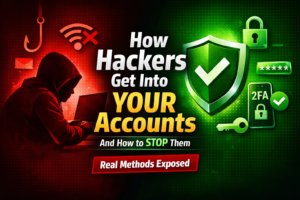
This is the most common attack by far. Hackers obtain username-password pairs from data breaches, then systematically test them across major services.
How it works:
Attackers use automated tools to try stolen credentials on Gmail, PayPal, banking sites, shopping sites, and more. Because people reuse passwords, success rates are surprisingly high—often 0.1% to 2% of attempts succeed.
Defense:
Unique passwords for every account. Password reuse is the vulnerability this attack exploits.
Phishing
Fake websites or emails trick you into entering credentials on attacker-controlled pages.
How it works:
You receive an email appearing to be from your bank, PayPal, or another service. It claims there’s a problem with your account and provides a link. The link goes to a convincing fake site that captures whatever you enter.
Increasingly, attackers use look-alike domains—”paypa1.com” instead of “paypal.com”—that are hard to spot at a glance.
Defense:
Never click links in emails to log into accounts. Instead, manually type the URL or use bookmarks. Password managers help here too—they won’t auto-fill credentials on fake sites because the domain won’t match.
Additionally, 2FA provides partial protection. Even if you enter credentials on a phishing site, attackers can’t access your account without the second factor (though sophisticated phishing can capture 2FA codes too).
Social Engineering
Attackers manipulate people into revealing information or performing actions that compromise security.
How it works:
Someone calls pretending to be tech support, claiming your account has been compromised. They convince you to disable 2FA, share a verification code, or install remote access software.
Alternatively, they might impersonate a company executive emailing IT support to reset passwords, or pose as you to convince your phone carrier to transfer your number (SIM swapping).
Defense:
Be skeptical of unsolicited contact asking for security information or actions. Legitimate companies don’t call asking you to disable security features or share verification codes.
When in doubt, hang up and contact the company directly using official contact information you find independently—not phone numbers the caller provides.
Data Breaches
Services you use get hacked, exposing your account information.
How it works:
A website with inadequate security gets breached. Attackers obtain user databases containing emails, passwords (sometimes encrypted, often not), and other information. Subsequently, this data appears on criminal forums and breach databases.
Defense:
You can’t prevent breaches at services you use. However, you can limit the damage:
- Use unique passwords so a breach at one service doesn’t compromise others
- Monitor breach notification services like Have I Been Pwned
- Change passwords immediately when you learn of breaches affecting your accounts
Keyloggers and Malware
Malicious software on your device captures everything you type, including passwords.
How it works:
You accidentally install malware—through email attachments, fake software downloads, or compromised websites. The malware records keystrokes, takes screenshots, or monitors clipboard contents.
Defense:
Keep your operating system and software updated. Use reputable antivirus software. Don’t download software from untrusted sources or open suspicious email attachments.
Importantly, password managers help here too—auto-filling passwords means you’re not typing them, so keyloggers can’t capture them.
Practical Password Security Action Plan
Theory is nice, but you need concrete steps. Here’s a prioritized action plan for improving your password security.
Immediate Actions (Do Today)
1. Check if you’ve been breached:
Visit haveibeenpwned.com and enter your email addresses. This shows which breaches have exposed your information. Consequently, you know which accounts need immediate password changes.
2. Enable 2FA on critical accounts:
At minimum, enable 2FA on:
- Primary email account
- Banking and financial accounts
- Password manager (when you set one up)
- Social media accounts
Use authenticator apps or hardware keys rather than SMS where possible.
3. Change your most critical passwords:
Update passwords for email, banking, and any accounts sharing passwords with known breaches. Make them long (16+ characters), unique, and strong.
Week One Actions
4. Choose and set up a password manager:
Research options (1Password, Bitwarden, Dashlane) and select one. Set it up with a very strong master password.
5. Migrate your most important accounts:
Add critical accounts to your password manager first—email, banking, work accounts, primary social media. Generate new, strong, unique passwords for each.
6. Set up backup codes:
Save 2FA backup codes for critical accounts in your password manager. This prevents lockouts if you lose your 2FA device.
Month One Actions
7. Migrate remaining accounts:
Gradually add other accounts to your password manager, changing passwords to strong, unique ones as you go.
8. Audit and clean up:
Delete accounts you no longer use. Fewer accounts means fewer attack surfaces and less to manage.
9. Set up breach monitoring:
Enable breach monitoring in your password manager (most offer this). Sign up for alerts from Have I Been Pwned.
Ongoing Maintenance
10. Review security regularly:
Quarterly, check for weak or reused passwords in your password manager. Update any that need strengthening.
11. Stay informed about breaches:
When you receive breach notifications, change affected passwords immediately.
12. Keep software updated:
Enable automatic updates for your password manager, operating system, and browser. These updates often include security fixes.
Special Cases and FAQs
Certain situations require specific approaches beyond general advice.
Shared Accounts
Some accounts need to be shared—family streaming services, shared work tools, household utilities.
Best approach:
Use your password manager’s sharing features. Most allow securely sharing specific passwords with designated people without revealing the actual password.
Alternatively, create a separate shared password manager for household accounts while keeping personal accounts in your individual manager.
What not to do:
Don’t text or email passwords. Don’t use the same password across personal and shared accounts.
Work vs. Personal Passwords
Many people use personal email for work accounts or vice versa, creating security complexities.
Best approach:
Keep work and personal completely separate:
- Use work email only for work accounts
- Use personal email only for personal accounts
- Maintain separate password manager profiles if your manager supports it
- Never reuse passwords between work and personal accounts
This separation limits damage if either work or personal accounts are compromised.
Recovery Options
Setting up account recovery is crucial—without it, losing access to your 2FA device or forgetting passwords can lock you out permanently.
Good recovery options:
- Backup codes stored securely (password manager or physical safe)
- Recovery email addresses you control
- Authenticator app backups synced across devices
Risky recovery options:
- Security questions (answers are often guessable or researchable)
- SMS to phone numbers (vulnerable to SIM swapping)
- Recovery emails you rarely check
Best practice:
Set up multiple recovery methods for critical accounts. Test them periodically to ensure they work.
The Bottom Line
Password security in 2026 isn’t about memorizing complex strings or changing passwords constantly. Instead, it’s about:
1. Using a password manager to create and store unique passwords for every account
2. Making passwords long rather than complex (16+ characters)
3. Enabling proper 2FA (authenticator apps or hardware keys) on important accounts
4. Never reusing passwords across different services
5. Staying alert to phishing and social engineering attempts
These five practices provide exponentially better security than traditional advice ever did. Moreover, they’re actually sustainable—you can maintain these habits long-term without going insane.
The old way—memorizing dozens of complex passwords, changing them quarterly, never writing them down—was always impractical. Consequently, people took shortcuts that undermined security. The modern approach acknowledges human limitations and works with them rather than against them.
Your password security is only as strong as your weakest link. Using ultra-strong passwords won’t help if you fall for phishing. 2FA won’t protect you if you reuse passwords. Therefore, implement these practices together for comprehensive protection.
Start today. Choose a password manager, enable 2FA on critical accounts, and begin migrating to unique passwords. Your future self will thank you when you avoid the nightmare of account compromise and identity theft.
Security doesn’t require perfection—it requires being harder to compromise than the average target. Follow these practices, and you’ll be far ahead of most people, making yourself a much less attractive target for attackers who’ll move on to easier victims.
Written by